Creating graph paper can be a hassle, especially when you need it quickly for a project or a class. Fortunately, Microsoft Word offers an easy way to print graph paper right from your computer. This method saves time and ensures you have the exact specifications you need.
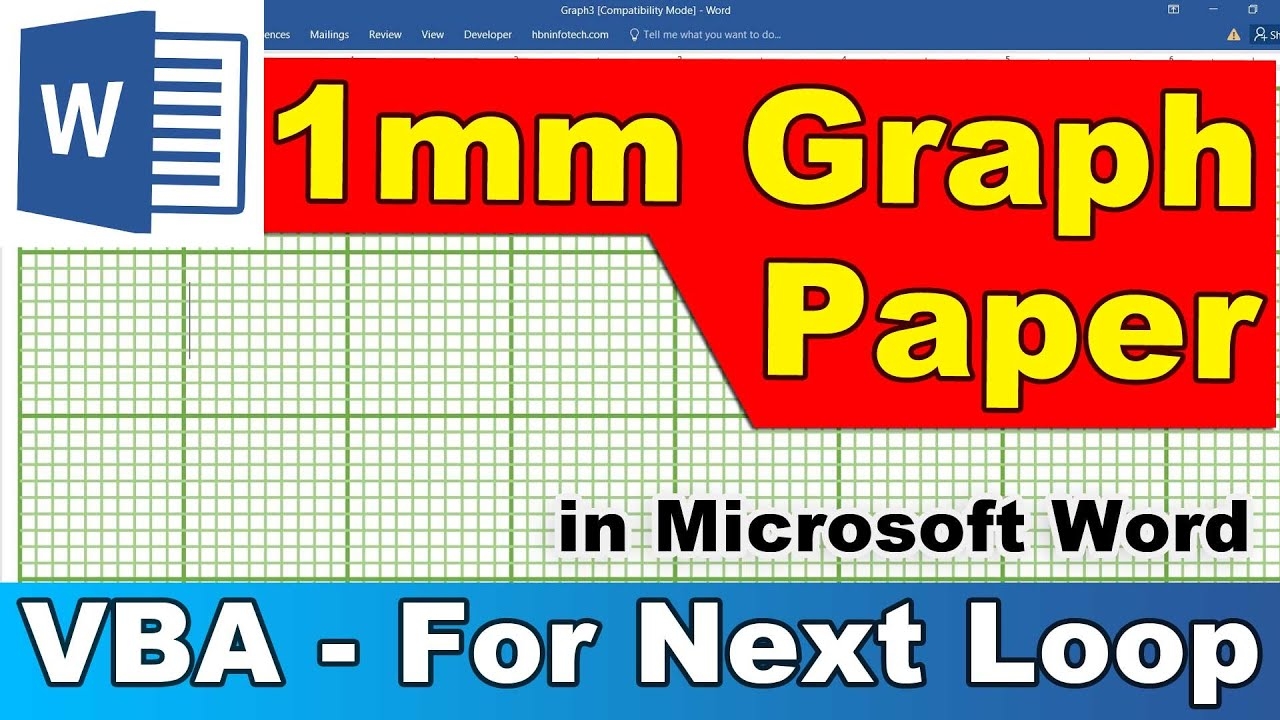
Printing Graph Paper In Word
Printing Graph Paper In Word
To start printing graph paper in Word, open a new document and set your page layout. Adjust the margins to narrow settings to maximize your printable area. This allows for more grid space on each page.
Next, insert a table to create the grid. Choose the number of rows and columns based on your desired grid size. For standard graph paper, a 10×10 table works well. You can adjust the cell size to fit your needs.
Once your table is set up, customize the borders. Select all cells and choose a border style that suits your preferences. A simple solid line is often best for clarity. This will give your graph paper a clean and professional look.
Finally, print your document. Make sure to check the print settings to ensure everything appears as intended. With these steps, you’ll have high-quality graph paper ready for any task!
Printing graph paper in Word is straightforward and efficient. By following these simple steps, you can create customized sheets that meet your specific needs without any hassle. Enjoy your newfound ability to print graph paper anytime!
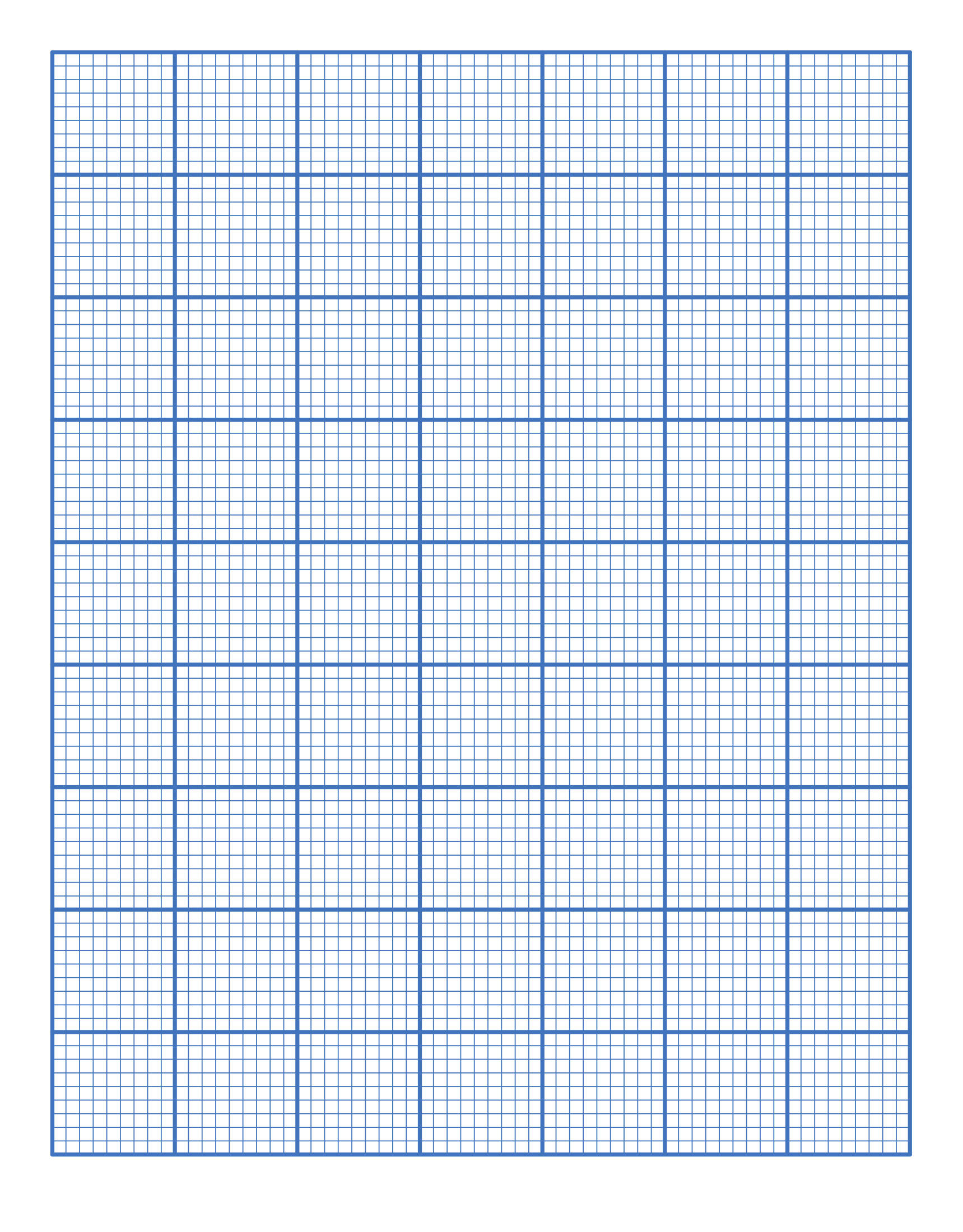
Free Printable Graph Paper Online Grid Paper Free Printables
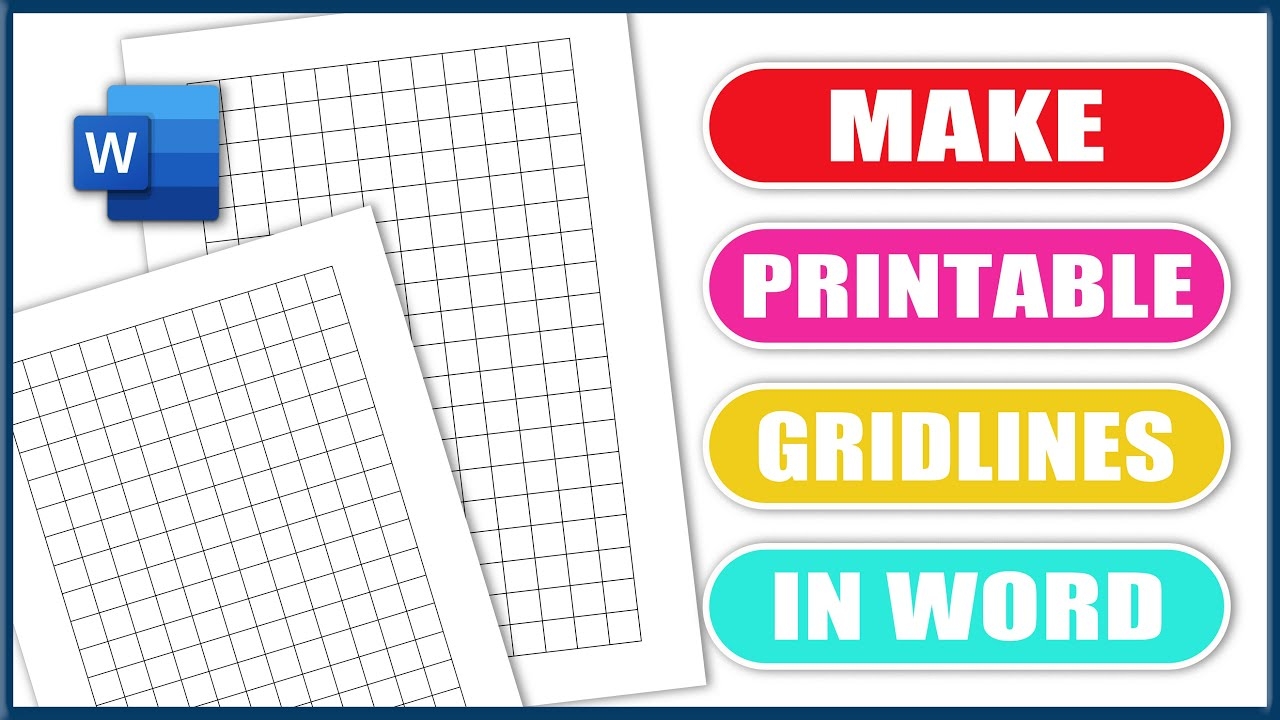
Make PRINTABLE Gridlines In WORD Microsoft Word Tutorials
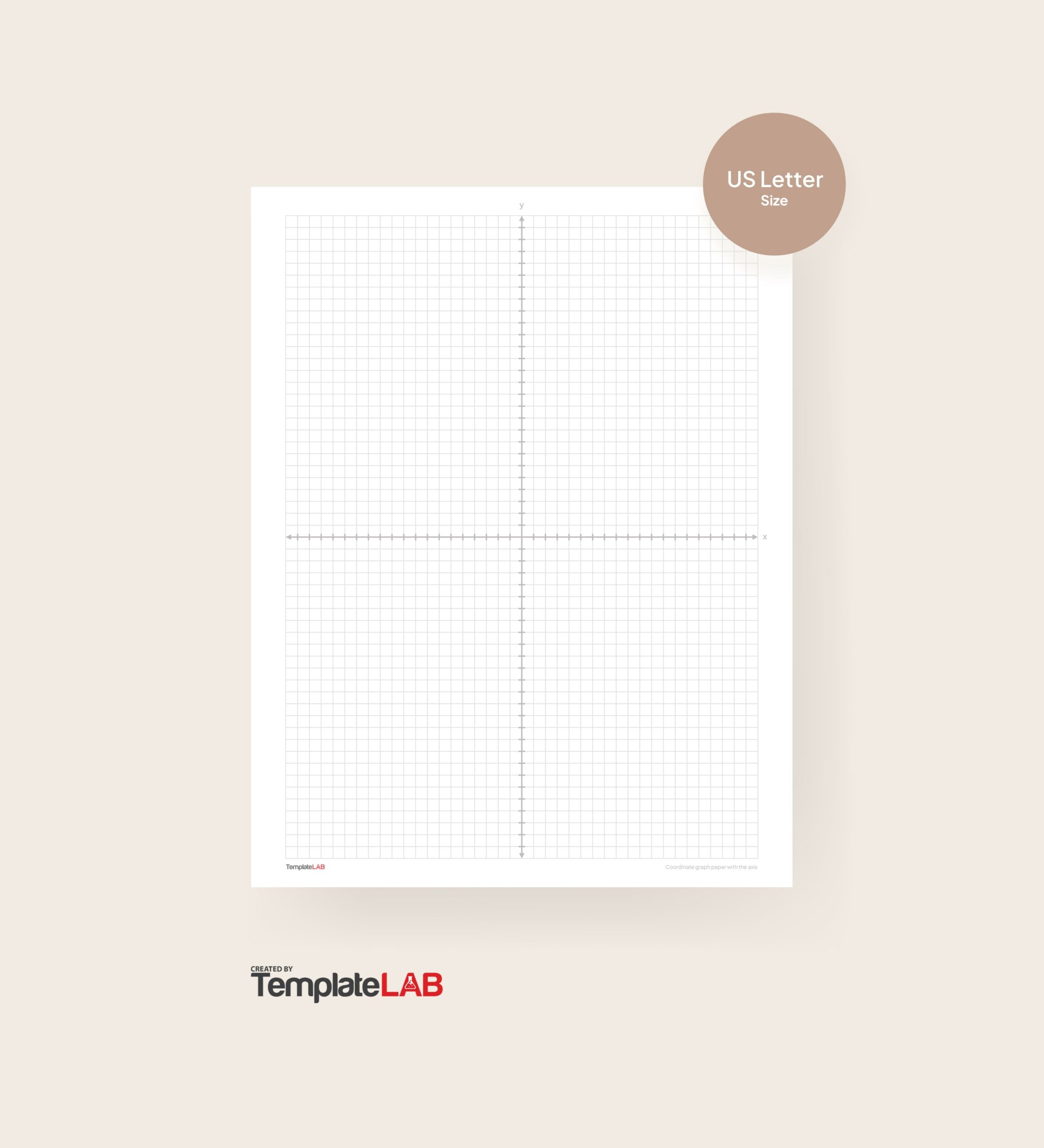
24 Free Printable Graph Paper Templates Word PDF
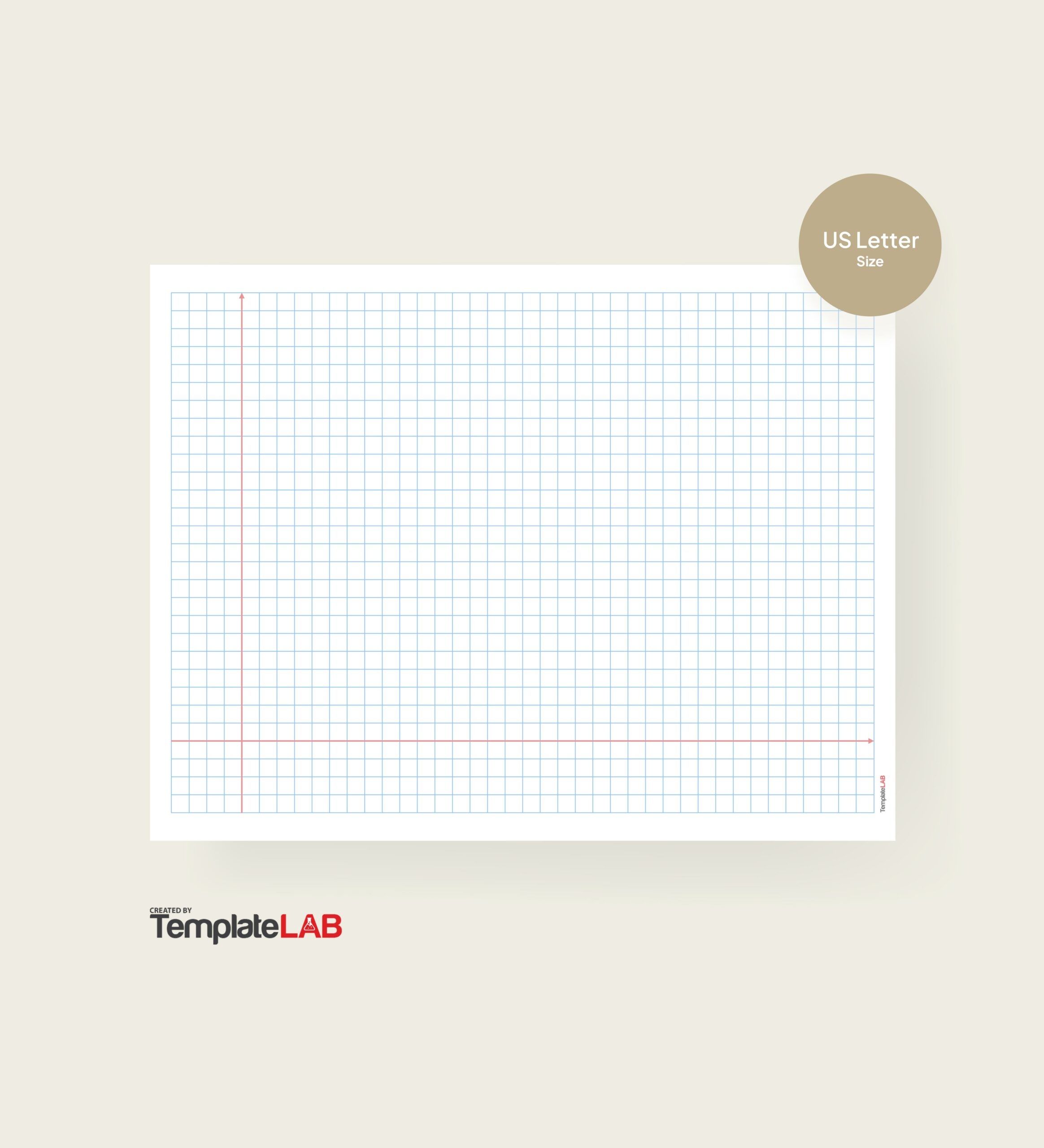
24 Free Printable Graph Paper Templates Word PDF
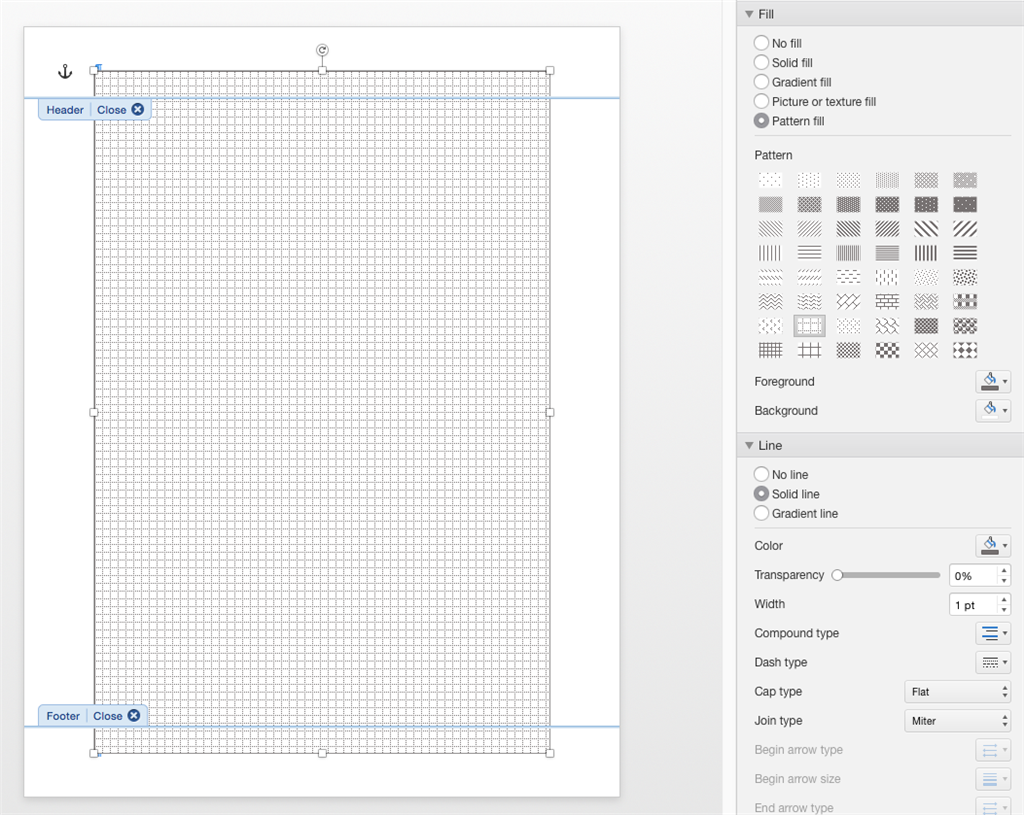
Graph Paper As Background In A Word Document Tiled Pattern