Creating graphs and charts can be a breeze with the right tools at your disposal. One often-overlooked resource is graphing paper, which can be easily accessed through Microsoft Word. This handy feature can enhance your projects significantly.
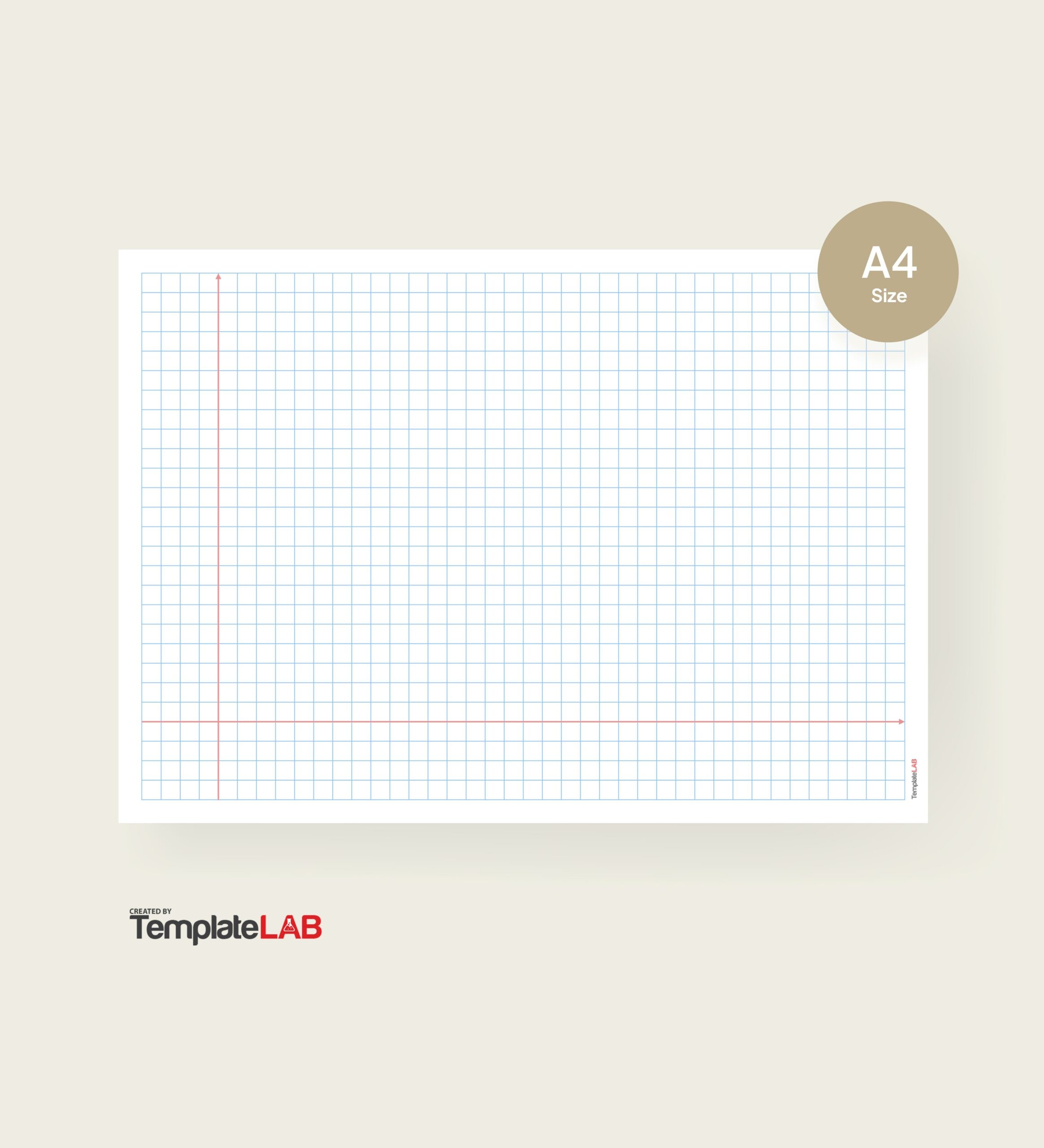
Graphing Paper In Word
Graphing Paper In Word
To find graphing paper in Word, start by opening a new document. Navigate to the “Insert” tab and select “Shapes.” From there, you can create a grid that resembles traditional graph paper.
Another option is to search for templates. Microsoft Word offers various templates that include pre-made graphing paper layouts. Simply type “graph paper” in the template search bar to explore your options.
Once you have your graphing paper set up, you can easily customize it. Adjust the size of the squares or change the color to suit your preferences. This flexibility makes it perfect for any project.
Using graphing paper in Word not only saves time but also enhances clarity in your presentations and reports. It’s a simple yet effective way to organize your data visually.
Incorporating graphing paper into your workflow can streamline your tasks and improve accuracy. With just a few clicks in Word, you can elevate your work to the next level.
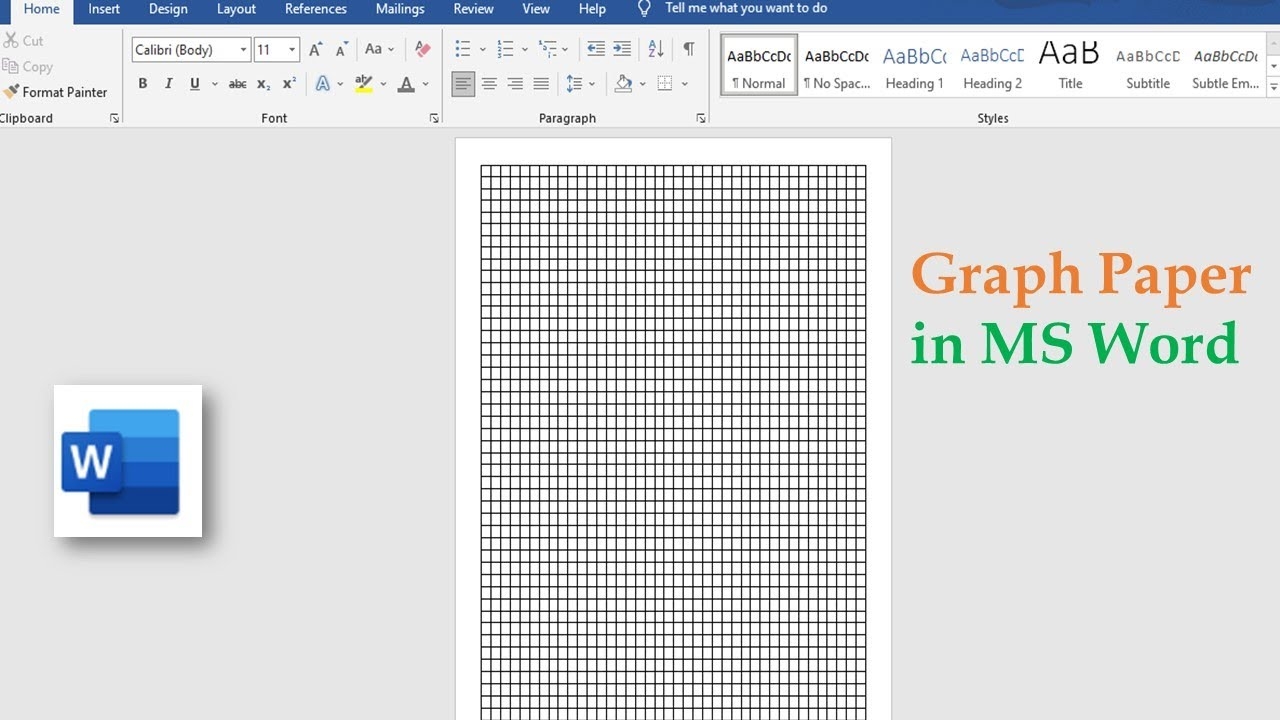
How To Make Graph Paper In MS Word
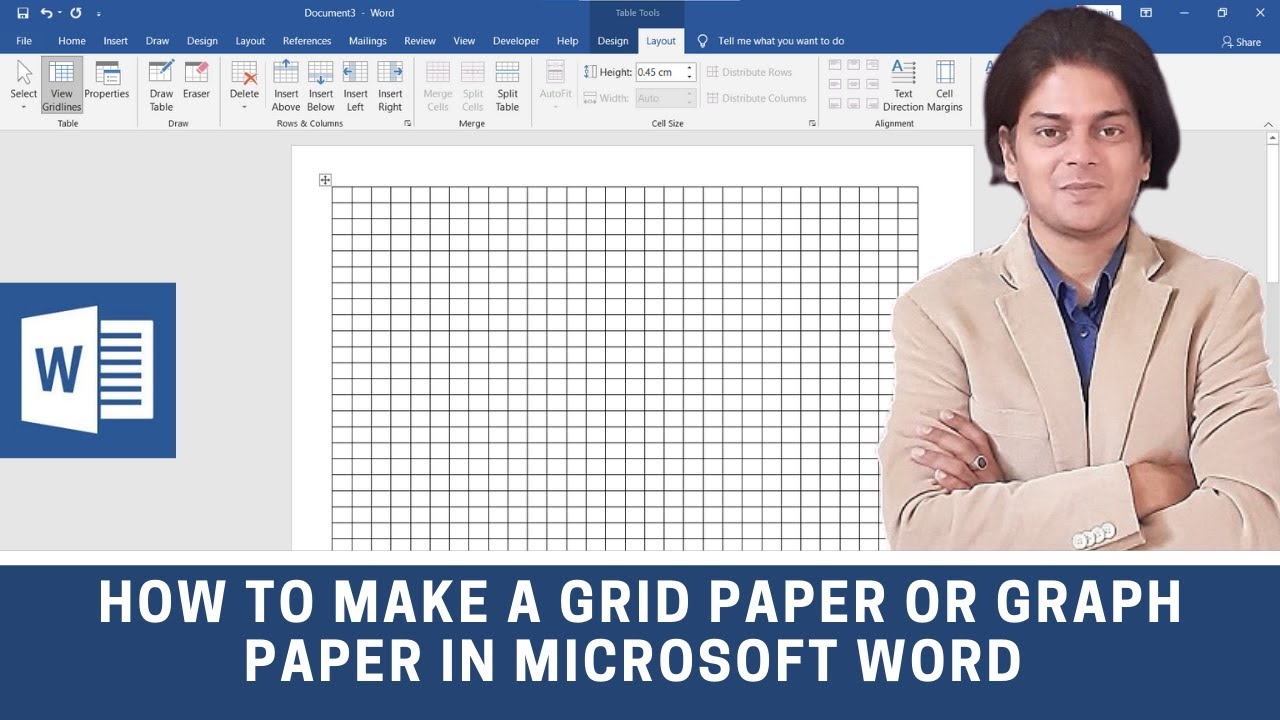
How To Make A Grid Paper Or Graph Paper In Microsoft Word
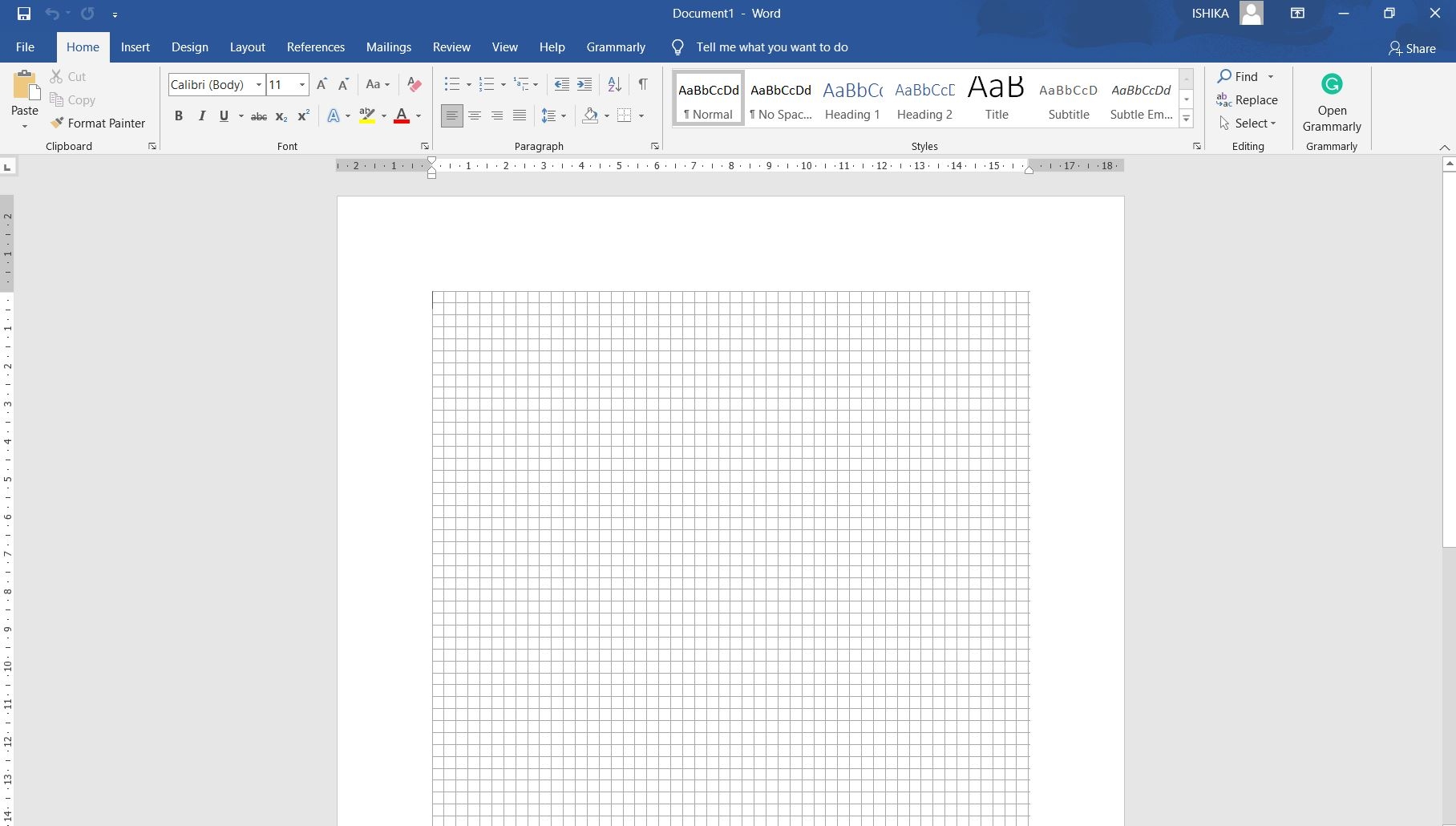
Boxes Like Graph Paper Microsoft Q amp A
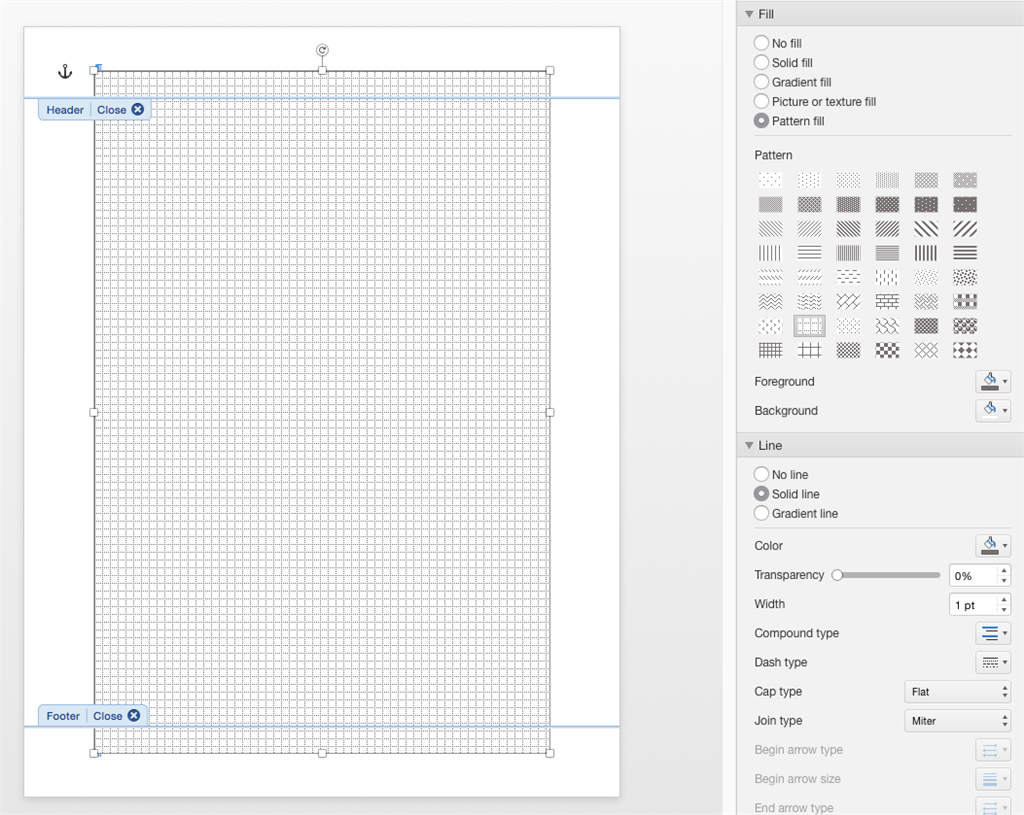
Graph Paper As Background In A Word Document Tiled Pattern
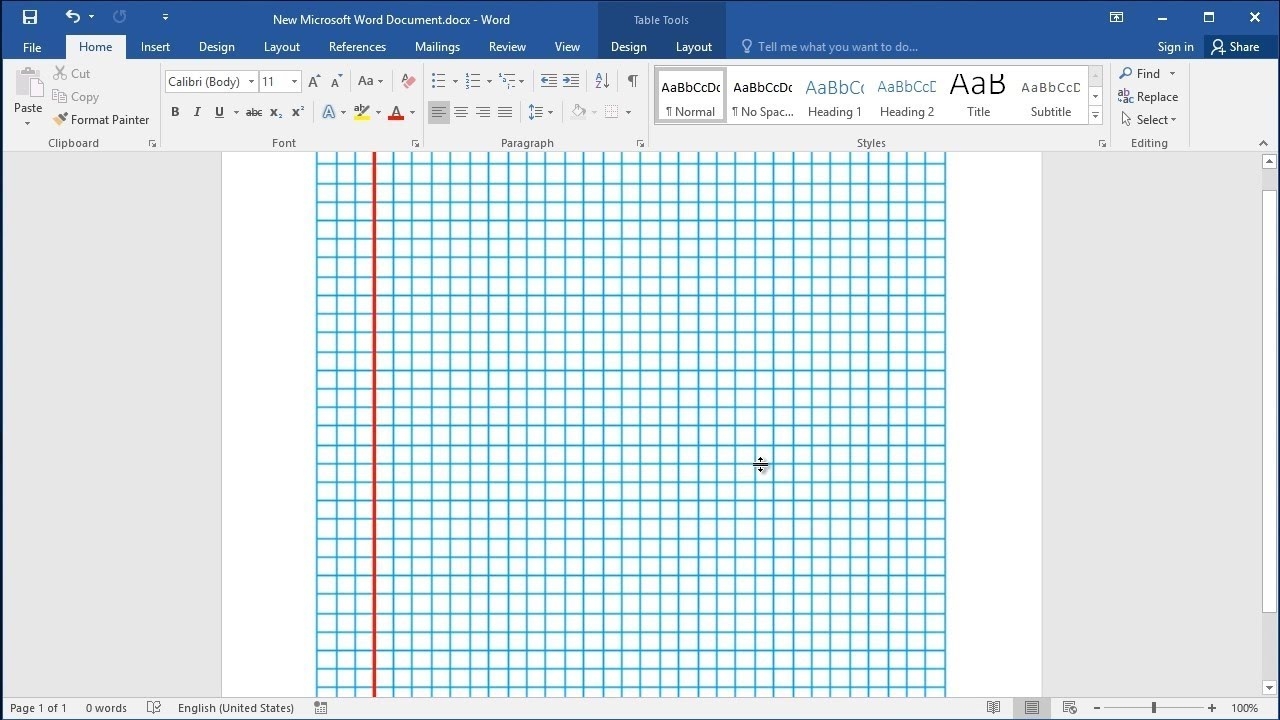
How To Get Graph Paper In Word